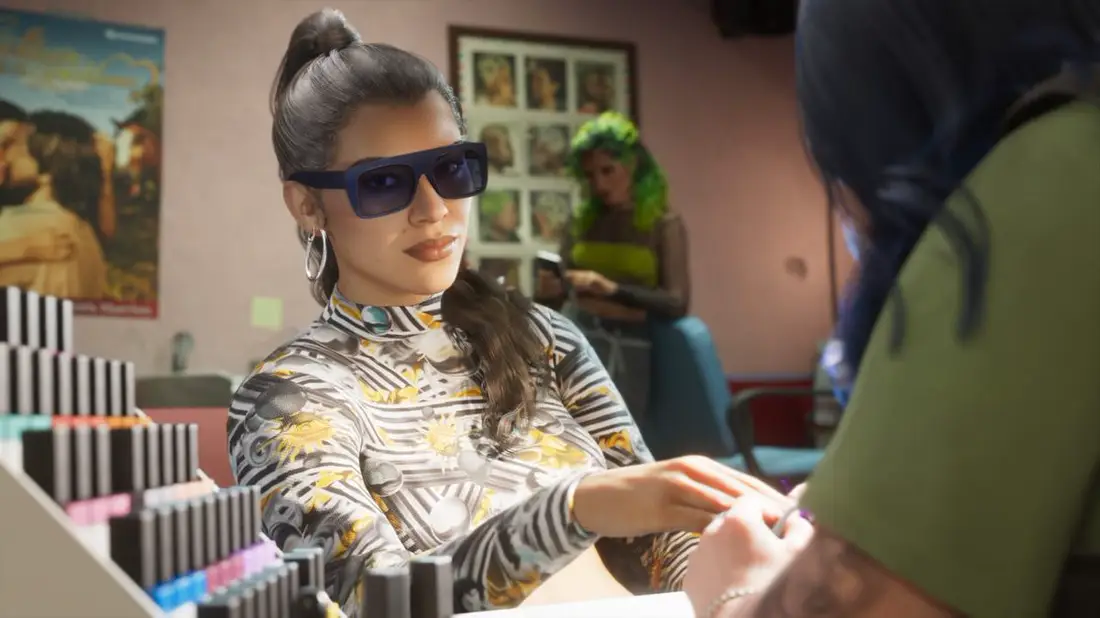
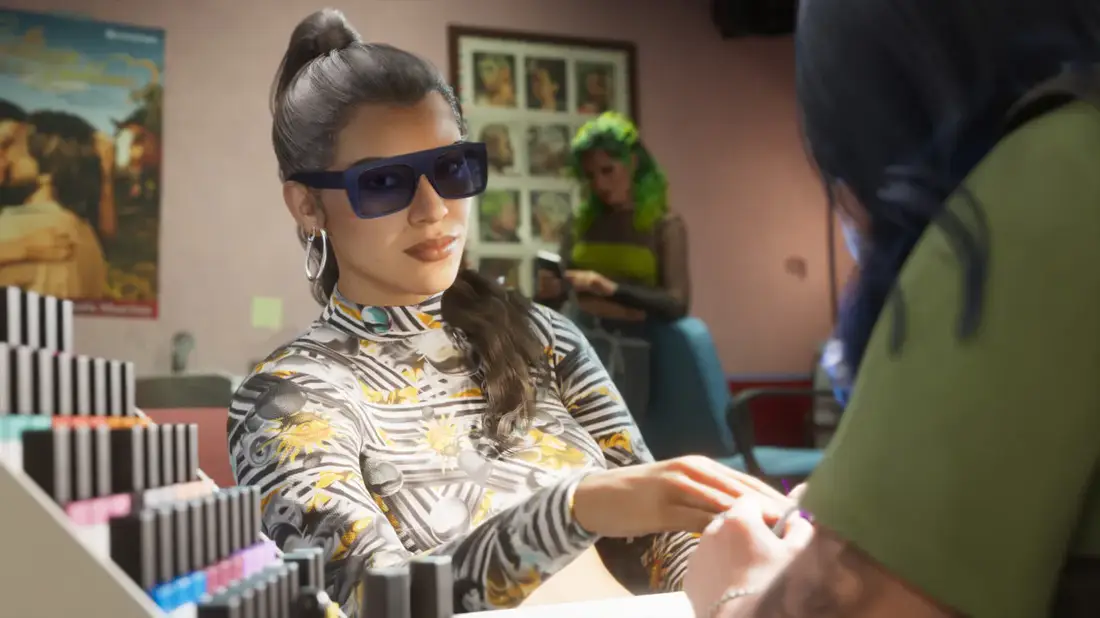
IGN explains every GTA 6 display setting and says to keep Brightness Reduction off
4,687 views on the source post
IGN's Jacqueline Thomas walks through the Display tab in the GTA 6 settings menu (pause, Settings, then R1 on PS5 or RB on Xbox). She sets brightness until the Rockstar logo is barely visible, keeps the three screen-effect intensity sliders at maximum, and turns motion blur down to 1 or 0. IGN calls Brightness Reduction the most impactful setting: it softens bright lights but gives the world a washed-out look, so IGN says to keep it off unless you need it.
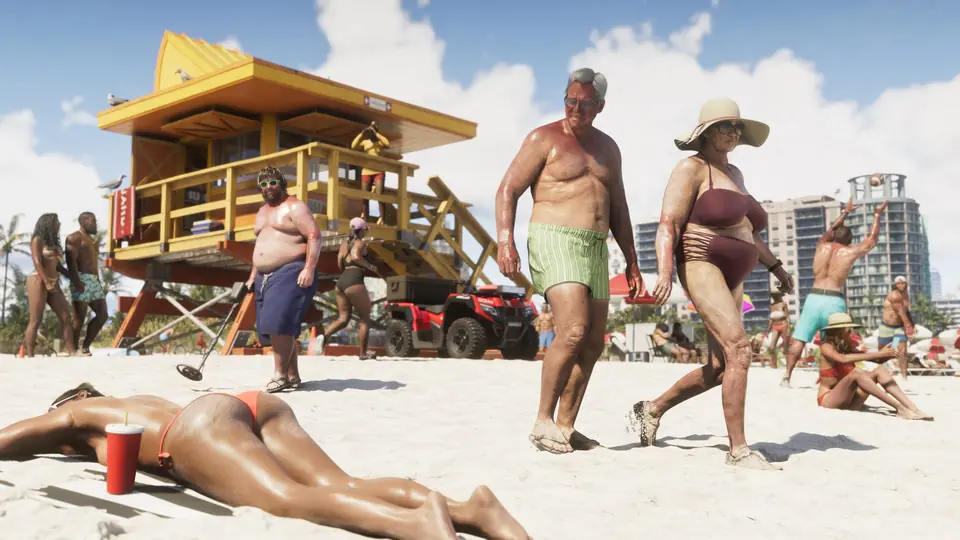
The page also covers the dismemberment toggle, a blood and gore slider that defaults to 3 of 3, a bright or dark flashbang option, and high contrast shaders that color players yellow, allies blue, enemies red and objects gray.
Key points
- Display tab: pause, Settings, then R1 (PS5) or RB (Xbox)
- Brightness: set until the Rockstar logo is barely visible
- Motion blur: IGN turns it to 1 or 0
- Brightness Reduction washes out the image; IGN says keep it off
- High contrast shaders: yellow player, blue allies, red enemies, gray objects