A base PS5 player shares a TV motion-smoothing setup that makes GTA 6 look smoother, not true 60 FPS
A post on r/GTAVI shares a setup for a base PS5 on a budget LG TV (model LG 50UQ8050PSB). The poster says clearly that the game still does not render at 60 FPS; the TV adds in-between frames so motion looks smoother. Step one is to turn off ALLM on the PS5 (Settings, Screen and Video, Video Output), because ALLM forces the TV into Game Mode, which usually disables motion smoothing.
The next step is to turn on the TV's own motion smoothing. The poster warns that this adds some input lag and links a YouTube video as proof. This has not been confirmed by Rockstar Games or Take-Two.
Key points
- Not real 60 FPS: the TV makes the extra frames
- Turn off ALLM in PS5 Video Output settings
- Turn on motion smoothing on the TV
- Expect some extra input lag
Proof (reddit doesnt allow 4k 60FPS upload so had to share YT link): https://www.youtube.com/watch?v=fa9jaoGGRyk Been playing GTA 6 with this setup and it’s been a big upgrade in smoothness, so sharing in case it helps anyone. Note that I am using a very base model LG TV at my parent's place: LG 50UQ8050PSB Guide: Quick heads-up: this doesn’t make the game render at 60 FPS. Your TV creates in-between frames, so it looks and feels much smoother. You’ll get a bit of extra input lag, but for a game like this I barely notice it. Step 1: Turn off ALLM on your PS5Settings → Screen and Video → Video Output → turn off ALLM.With ALLM on, the TV is forced into Game Mode, and most TVs disable motion smoothing in Game Mode. You need ALLM off for this to work.
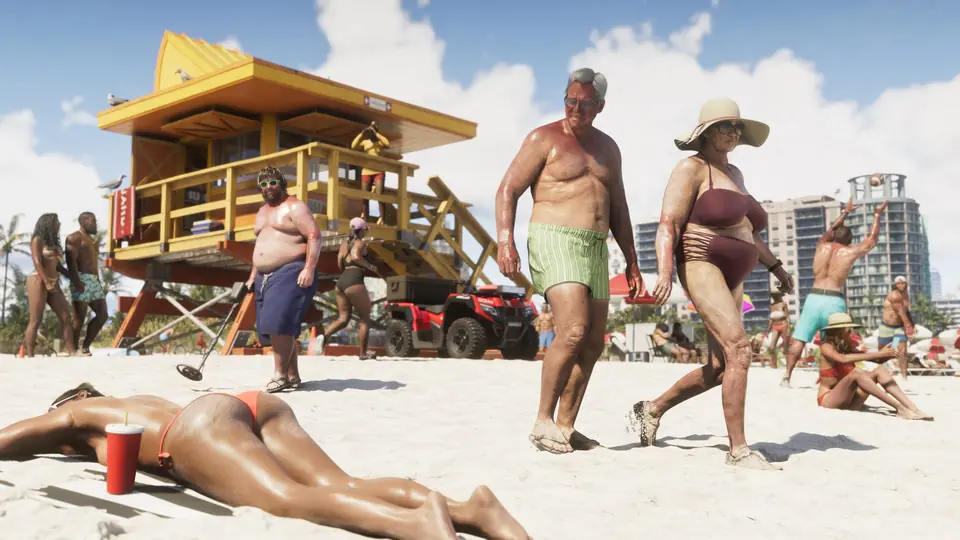
Image: YouTube thumbnail from the linked video
Resources
- Original source r/GTAVI · I Got GTA 6 Running At 60 FPS!! (Base PS5) - With Guide
- On the wiki GTA 6 performance on PS5, PS5 Pro, Xbox Series X and Series S
- Same story Rockstar confirms GTA 6 is now available on PS5 and Xbox Series X|S
- Same story A player reports GTA 6 dropping into the mid-20s FPS on PS5, even in quiet scenes.
- Same story Rockstar North's Rob Nelson tells IGN that GTA 6 at 60fps would have needed 'too many compromises'.
- Same story IGN tested GTA 6 on all four consoles: PS5 Pro is smoothest, Series S dips to 24fps.
- Same story A YouTube video compares GTA 6 loading times and graphics on PS5, PS5 Pro, Series S and Series X.
- Same story A player says GTA 6 at 30 FPS on a base PS5 feels like 45 to 50 FPS.